By
Published Jul 15, 2019



No headings found
There may be times when you find a beautiful picture on your computer and think of sharing it on your Instagram. But when you log in to your Instagram account from your PC, you see that there is no upload option available! Now you might look around for your USB cable to transfer it to your phone, or, simply leave it be as you don't want to go through the extensive process of copying the picture on your phone. Then, you lament over the lack of options you have and decide, the picture will never be showcased to the world. But not anymore. There are some "hacks" - don't worry, you won't have to hack your computer - to do this. Here, I have listed some options you can use to upload your pictures on Instagram using your PC.
Using browser developer mode
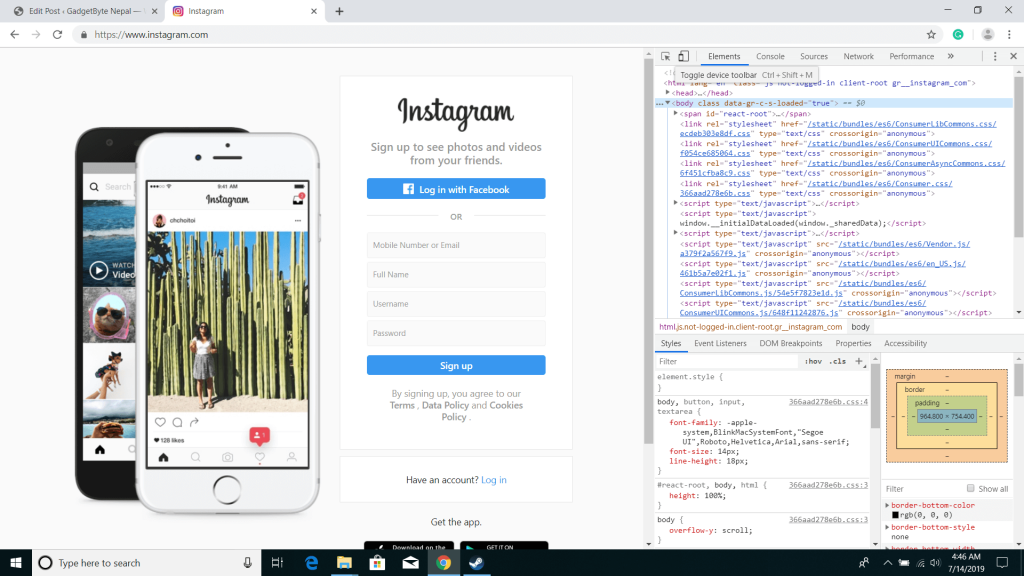
In my opinion, it is the best way to upload pictures to Instagram on PC. It does not require any kind of extensions and is relatively easy for an average PC user. The initial step is to log in to your Instagram account using your browser then enter the browser's developer mode. The steps to access the browser's development mode may vary according to your browser. Chrome: F12 or three dot menu > more tools > developer tools Firefox: Three-line menu/hamburger menu > web developer > toggle tools Opera: Menu > developer > developer tools Microsoft edge: F12 and then choosing emulation from the arrow pointing downwards
Using BlueStacks Android Emulator
An Android emulator is a program that lets you run Android apps on PC. So basically, you are running the actual Instagram app on your computer.

Using the Windows 10 Instagram app
Windows has an Instagram app available in the Windows store. But apparently, Instagram has restricted uploads to Windows 10 devices with touchscreens only (eg. convertibles and tablets). However, it is still possible to find and use the app's upload functionality regardless of the screen type.
Article Last updated: November 25, 2025